


Of course! Styling the DedeCMS (织梦CMS) pagelist tag is a common task. The pagelist tag generates a list of pagination links (e.g., < Previous 1 2 3 ... Next >), and its appearance is controlled by CSS.
Here’s a comprehensive guide covering the default HTML structure, how to target it with CSS, and several complete, copy-paste-ready examples for different styles.
Understanding the Default HTML Structure
First, you need to see the HTML code that the {dede:pagelist/} tag generates. It's wrapped in a <div> with a default class, and each page number is a <span> or <a> tag.
Example HTML Output:
<!-- The main container for the pagination list -->
<div class="dede_pages">
<ul class="pagelist">
<!-- The "Previous" link -->
<li class="pre"><a href="/list_1_1.html">‹上一页</a></li>
<!-- The "First" link -->
<li><a href="/list_1_1.html">1</a></li>
<!-- An ellipsis (...) -->
<li><span>...</span></li>
<!-- A regular page number link -->
<li><a href="/list_1_2.html">2</a></li>
<!-- The current page number (not a link) -->
<li class="thisclass"><strong>3</strong></li>
<!-- Another regular page number link -->
<li><a href="/list_1_4.html">4</a></li>
<!-- Another ellipsis (...) -->
<li><span>...</span></li>
<!-- The "Last" link -->
<li><a href="/list_1_20.html">20</a></li>
<!-- The "Next" link -->
<li class="next"><a href="/list_1_4.html">下一页›</a></li>
</ul>
</div>
Key CSS Selectors to remember:

- Main Container:
.dede_pagesor.pagelist(the<ul>element is usually the best target). - Page Link:
li a - Current Page:
li.thisclass strong - Disabled/Unavailable Links (e.g., when on the first page):
li.pre aorli.next amight be styled differently or disabled via JavaScript. - Ellipsis:
li span
Basic CSS Styling
This is a fundamental style to make the pagination look clean and usable. We'll style the links, add spacing, and highlight the current page.
/* Target the main unordered list containing the pagination */
.dede_pages .pagelist {
    list-style: none; /* Remove default bullet points */
    padding: 0;
    margin: 20px 0;
    display: flex; /* Use flexbox for easy alignment */
    justify-content: center; /* Center the pagination */
    gap: 5px; /* Add space between items */
}
/* Style each list item (the <li> element) */
.dede_pages .pagelist li {
    display: inline-block; /* Fallback for older browsers */
}
/* Style the links for all page numbers */
.dede_pages .pagelist li a {
    display: block; /* Allows padding to work correctly */
    padding: 8px 12px;
    text-decoration: none;
    color: #333;
    border: 1px solid #ddd;
    border-radius: 4px; /* Rounded corners */
    transition: all 0.2s ease-in-out; /* Smooth hover effect */
}
/* Add a hover effect for page links */
.dede_pages .pagelist li a:hover {
    background-color: #f0f0f0;
    color: #007bff;
    border-color: #007bff;
}
/* Style the current page (it's a <strong> tag inside a .thisclass <li>) */
.dede_pages .pagelist li.thisclass strong {
    display: block;
    padding: 8px 12px;
    color: #fff;
    background-color: #007bff; /* Blue background for current page */
    border: 1px solid #007bff;
    border-radius: 4px;
    cursor: default; /* Show it's not a link */
}
/* Style the "Previous" and "Next" links */
.dede_pages .pagelist li.pre a,
.dede_pages .pagelist li.next a {
    font-weight: bold;
    color: #007bff;
    border: 1px solid #007bff;
}
/* Optional: Style the ellipsis */
.dede_pages .pagelist li span {
    padding: 8px 12px;
    color: #777;
}
Complete, Copy-Paste Examples
Here are three different, popular styles you can use directly.
Example 1: Modern Button Style (Clean & Simple)
This style mimics the look of many modern websites with simple, pill-shaped buttons.
/* Modern Button Style for DedeCMS Pagelist */
.dede_pages .pagelist {
    list-style: none;
    padding: 0;
    margin: 30px 0;
    display: flex;
    justify-content: center;
    gap: 8px;
    flex-wrap: wrap; /* Allows wrapping on smaller screens */
}
.dede_pages .pagelist li {
    display: inline-block;
}
.dede_pages .pagelist li a {
    display: inline-block; /* Changed to inline-block for tighter fit */
    padding: 10px 16px;
    color: #555;
    text-decoration: none;
    background-color: #f8f9fa;
    border: 1px solid #e9ecef;
    border-radius: 20px; /* Pill shape */
    font-size: 14px;
    transition: all 0.2s ease;
}
.dede_pages .pagelist li a:hover {
    background-color: #e9ecef;
    color: #0d6efd;
}
.dede_pages .pagelist li.thisclass strong {
    display: inline-block;
    padding: 10px 16px;
    color: #fff;
    background-color: #0d6efd;
    border-radius: 20px;
    font-size: 14px;
    cursor: default;
}
/* Style Previous/Next to look like regular buttons */
.dede_pages .pagelist li.pre a,
.dede_pages .pagelist li.next a {
    color: #555;
    background-color: #f8f9fa;
    border: 1px solid #e9ecef;
}
.dede_pages .pagelist li.pre a:hover,
.dede_pages .pagelist li.next a:hover {
    background-color: #e9ecef;
    color: #0d6efd;
}
/* Optional: Hide ellipsis for a cleaner look, or style it */
.dede_pages .pagelist li span {
    display: none; /* Hides the ... */
}
Example 2: Classic Style with Borders
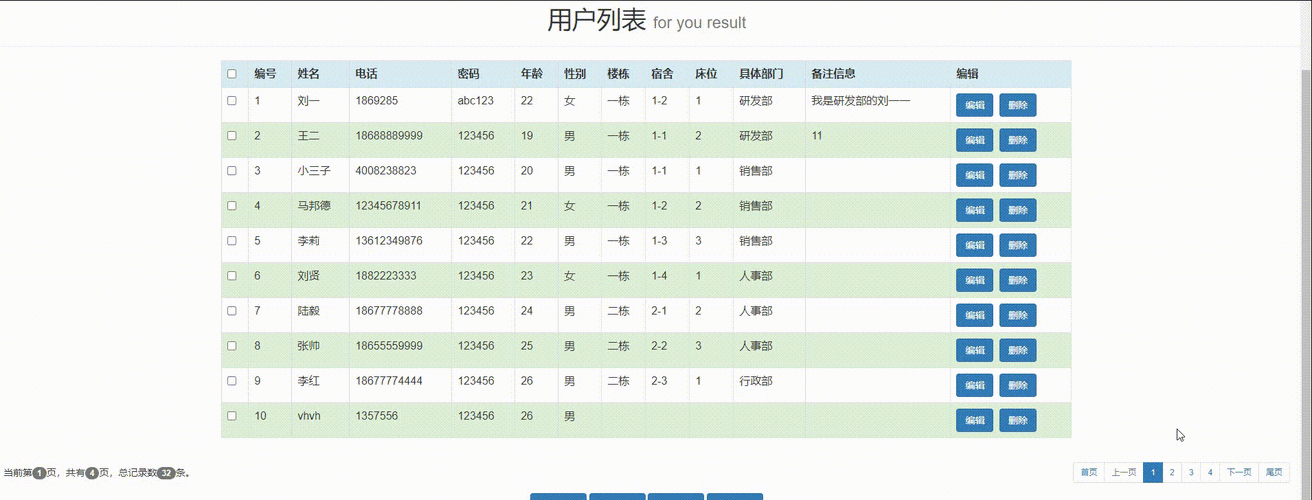
A traditional look with clear borders and a different color for the active page.
/* Classic Border Style for DedeCMS Pagelist */
.dede_pages .pagelist {
    list-style: none;
    padding: 0;
    margin: 25px 0;
    text-align: center; /* Center-align items if not using flexbox */
}
.dede_pages .pagelist li {
    display: inline-block;
    margin: 0 3px;
}
.dede_pages .pagelist li a {
    display: block;
    padding: 8px 12px;
    color: #333;
    text-decoration: none;
    border: 1px solid #ccc;
    border-radius: 3px;
}
.dede_pages .pagelist li a:hover {
    background-color: #f2f2f2;
    border-color: #999;
}
.dede_pages .pagelist li.thisclass strong {
    display: block;
    padding: 8px 12px;
    color: #fff;
    background-color: #ff6600; /* Orange for active page */
    border: 1px solid #ff6600;
    border-radius: 3px;
    font-weight: bold;
}
Example 3: Minimalist Style (No Borders)
A clean, lightweight style that uses color and background changes only.
/* Minimalist Style for DedeCMS Pagelist */
.dede_pages .pagelist {
    list-style: none;
    padding: 0;
    margin: 40px 0;
    display: flex;
    justify-content: center;
    gap: 5px;
}
.dede_pages .pagelist li {
    display: inline-block;
}
.dede_pages .pagelist li a {
    display: block;
    padding: 6px 12px;
    color: #666;
    text-decoration: none;
    border-radius: 3px;
    font-size: 14px;
}
.dede_pages .pagelist li a:hover {
    background-color: #f0f0f0;
    color: #333;
}
.dede_pages .pagelist li.thisclass strong {
    display: block;
    padding: 6px 12px;
    color: #fff;
    background-color: #333;
    border-radius: 3px;
    font-weight: normal;
}
How to Apply the CSS
- Find your CSS file: In your DedeCMS template, the styles are usually located in a file like
style.css,main.css, ordedecms.css. This file is inside your template's folder (e.g.,/templets/default/style/). - Copy and Paste: Choose one of the examples above and paste the CSS code into your main CSS file.
- Clear Cache: After saving the CSS file, you must clear DedeCMS's cache for the changes to take effect.
- Go to DedeCMS Backend -> System -> Clear Cache.
- Select "Clear All" and click "OK".
- You may also need to clear your browser's cache (Ctrl+F5 or Cmd+Shift+R) to see the changes immediately.
Troubleshooting
- Styles not applying?
- Check for typos in your CSS selectors (e.g.,
.dede-pagevs.dede_pages). - Use your browser's Developer Tools (F12). Right-click on the pagination and "Inspect" the element. This will show you the actual HTML and which CSS rules are being applied (or overridden).
- Check for specificity. Another CSS rule on your site might be overriding your styles. Use more specific selectors (e.g.,
body .dede_pages .pagelist li a) if necessary. - Clear the cache. This is the most common reason for changes not appearing.
- Check for typos in your CSS selectors (e.g.,